
A visitor who runs into a bug won't write to tell you about it. They close the tab and move on. On a store that has just opened, that means your very first visitors, often the ones you worked hardest to attract, are also the ones dealing with the rough edges. Testing your store before launch isn't perfectionism: it's the only way to know what your customers will actually experience. Here is the protocol we follow before removing the password from a Shopify store.
1. Lock the store and build a real test environment
Until the store is ready, keep it behind the Shopify password page (Online Store, Preferences). That prevents a search engine from indexing an unfinished version, or a friend from sharing the link too early.
If you're working on a store that's already live, never touch the published theme. Duplicate it, edit the copy, and use preview links to show the result to the people around you. Shopify lets you share a preview without publishing anything.
Take this opportunity to also create a test customer account with an email address you can check easily. You'll need it later to verify notifications.
The mistake to avoid: making final tweaks directly on the live theme "because it's faster." One misplaced section edit and your product page becomes unreadable for hours, without you even knowing.
2. Place real test orders, across several scenarios
This is the step most people skim over, and it's the most important one. Shopify gives you two ways to order without charging a card: test mode in Shopify Payments, and the Bogus Gateway to simulate approved or declined payments.
Don't settle for a single order. Run through several scenarios:
- one item, standard shipping;
- several items of different weights or sizes;
- a product with variants (size, color, scent);
- an order with a discount code;
- an order with a declined card, to see the message that appears;
- an order placed as a guest, then as a logged-in customer.
Each time, look at the checkout as if you were discovering it: the fields requested, the order of the steps, the shipping options offered, the price summary. If one step makes you hesitate for a second, it will make a customer hesitate too.
Also check how the cart behaves when someone comes back to it later, a topic directly tied to abandoned carts and their real causes.
The mistake to avoid: forgetting to turn off test mode after your trials, or leaving the fake orders in your history. Delete or cancel them before opening, otherwise your statistics and your bookkeeping start out skewed.
3. Check shipping, taxes and the zones you serve
Shipping costs are the number one source of surprise at checkout. Before opening, list the cases you'll genuinely encounter and test them one by one: mainland France, Corsica, French overseas territories, Belgium, Switzerland if you ship outside the EU, pickup points, in-store collection.
Above all, check that your shipping profiles and your products line up. A heavy item created after the initial setup often ends up in the general profile, with a rate that doesn't cover the cost of sending it. Order it to verify the amount displayed.
If you offer a free shipping threshold, test just below and just above that threshold. It's a powerful lever, provided you've done the math beforehand: we go deeper into this in our article on free shipping and its impact on your margin.
On the tax side, make sure the display matches your status (VAT included or not, exemption notice if that applies to you) and that the prices shown on the product page match those in the cart.
The mistake to avoid: only testing delivery to your own home address. You validate one case out of ten and discover the rest through emails from unhappy customers.
4. Check every automated email
A store sends far more messages than you'd think: order confirmation, shipping confirmation, order delivered, refund, account creation, password reset, abandoned cart if you've enabled it, contact form submissions.
Trigger them from your test order and actually read them, preferably on mobile. Four things to check:
- the sender name and the sending address (a store that writes from a generic Gmail address looks less serious than one using its own domain name);
- the logo and colors, which should match your store;
- Shopify's default text, often neutral, which you can customize;
- the links, especially the order tracking one.
Also check whether your emails land in spam. To limit that risk, your sending domain needs to be authenticated in your Shopify settings and with your DNS host.
The mistake to avoid: assuming these messages are "technical" and therefore secondary. The confirmation email is often the most-read message in the entire customer relationship. It deserves as much care as your homepage.
5. Test the mobile experience and the speed
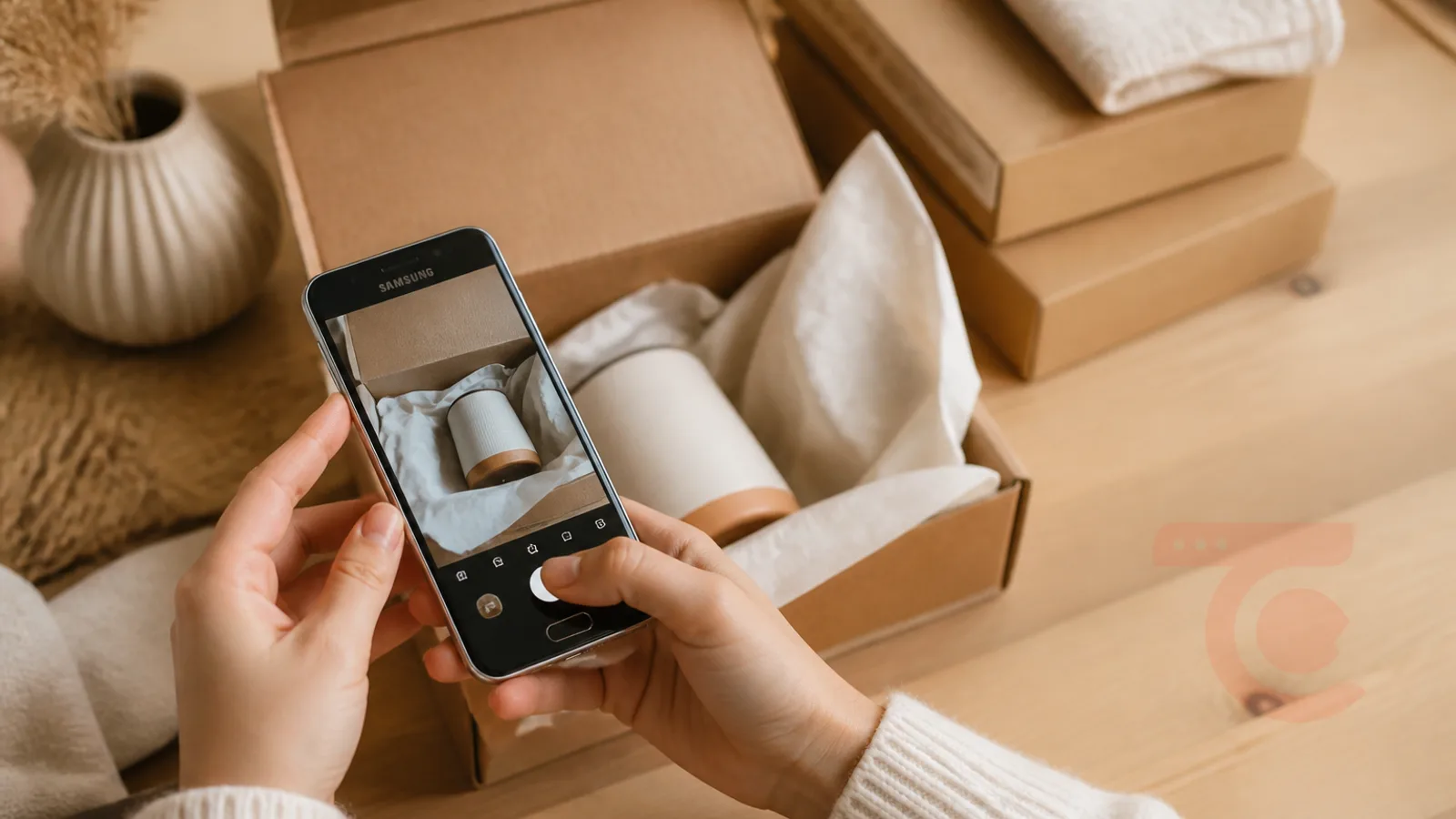
Most store visitors arrive from a phone. Shrinking your browser window isn't enough: pick up your own phone, on cellular data rather than wifi, and go through the whole journey again.
Things to watch closely:
- whether prices and add-to-cart buttons are readable without zooming;
- the variant selector, often too small for a fingertip;
- product images, how long they take to appear and how sharp they are when zoomed;
- the navigation menu and the internal search;
- pop-ups (newsletter, cookies, promotions) that can cover the buy button.
Then measure load times for the homepage, a collection page and a product page. Apps installed while building the site are the most common cause of a slowdown: uninstall the ones you don't use, since their code sometimes stays active in the theme. The link between slowness and lost sales is covered in our article on site speed as a business issue.
The mistake to avoid: signing off on the site from a large screen, on a fast connection, with a browser that already has everything cached. You're seeing a version of your store that almost nobody else will see.
6. Proofread the content, the legal pages and the credibility signals
Before opening, do a full fresh read-through, ideally with someone who hasn't worked on the project. Check product descriptions, titles, prices, stock levels, and whether photos are attached to the right variants.
Then make sure the required pages exist and are reachable from the footer: terms and conditions of sale, legal notices, privacy policy, return and refund policy, shipping information, contact page. Shopify offers templates, but they need to be adapted to what you actually do.
Add the elements that reassure a buyer who doesn't know you: a genuine "about" page, your contact details, your shipping times, your return policy written in plain language. When a store starts out with no track record, these signals count for a lot, as we explain in how to inspire trust when you're just starting out.
The mistake to avoid: leaving the theme's demo text on a secondary page. A paragraph of Latin discovered by a customer on your shipping page costs more in credibility than it seems.
7. Set up tracking and indexing before removing the password
The home stretch. Before opening, install and verify everything that will let you understand what happens next:
- Google Analytics or the measurement tool of your choice, with a test of order tracking;
- Search Console, with the sitemap submitted once the store is public;
- advertising pixels if you plan to run ads;
- redirects, essential if you're replacing an older store.
Also review the title tags and descriptions of your main pages, along with your product and collection URLs. A clean URL, chosen once, saves you from having to create redirects later. Going forward, set up tracking for your Google rankings from the very first weeks.
The mistake to avoid: opening the store with no measurement tools at all, then trying to work out three months later why visitors aren't ordering. Without data, all you can do is guess.
Your pre-launch checklist
- The theme is up to date, duplicated and backed up before publishing
- At least five test order scenarios have been run, then deleted
- Payment test mode is turned off and a real payment has been verified
- Every shipping profile has been tested with a real product
- Automated emails are customized, sent from your own domain name, and arrive out of spam
- The full journey has been repeated from a phone on a mobile connection
- Unused apps have been uninstalled
- Terms of sale, legal notices, privacy, returns and contact are live and up to date
- All of the theme's demo text is gone
- Analytics, Search Console and redirects are in place
- A custom 404 page exists and points back to the store
- The password page comes down on launch day, not the night before
Conclusion
The testing phase isn't an administrative formality at the end of a project, it's the moment you finally become the customer of your own store. Give it a slot in the schedule, a week if possible, and run it with two or three outside people who have no idea how the site was built. They're the ones who will find what you can no longer see.
And if the result feels solid but you're still unsure about specific points (checkout, speed, product pages), an outside look before opening always costs less than a fix after your first campaigns. That's exactly what we do on turnkey Shopify store projects, from the initial setup through to launch.
If you'd rather see what your store could look like before committing, we can put together a first visual proposal at no cost.